MapsIPHONE + WEB
A SIMPLE HOME FOR YOUR FAVORITE PLACES
Your places.
One tap away.
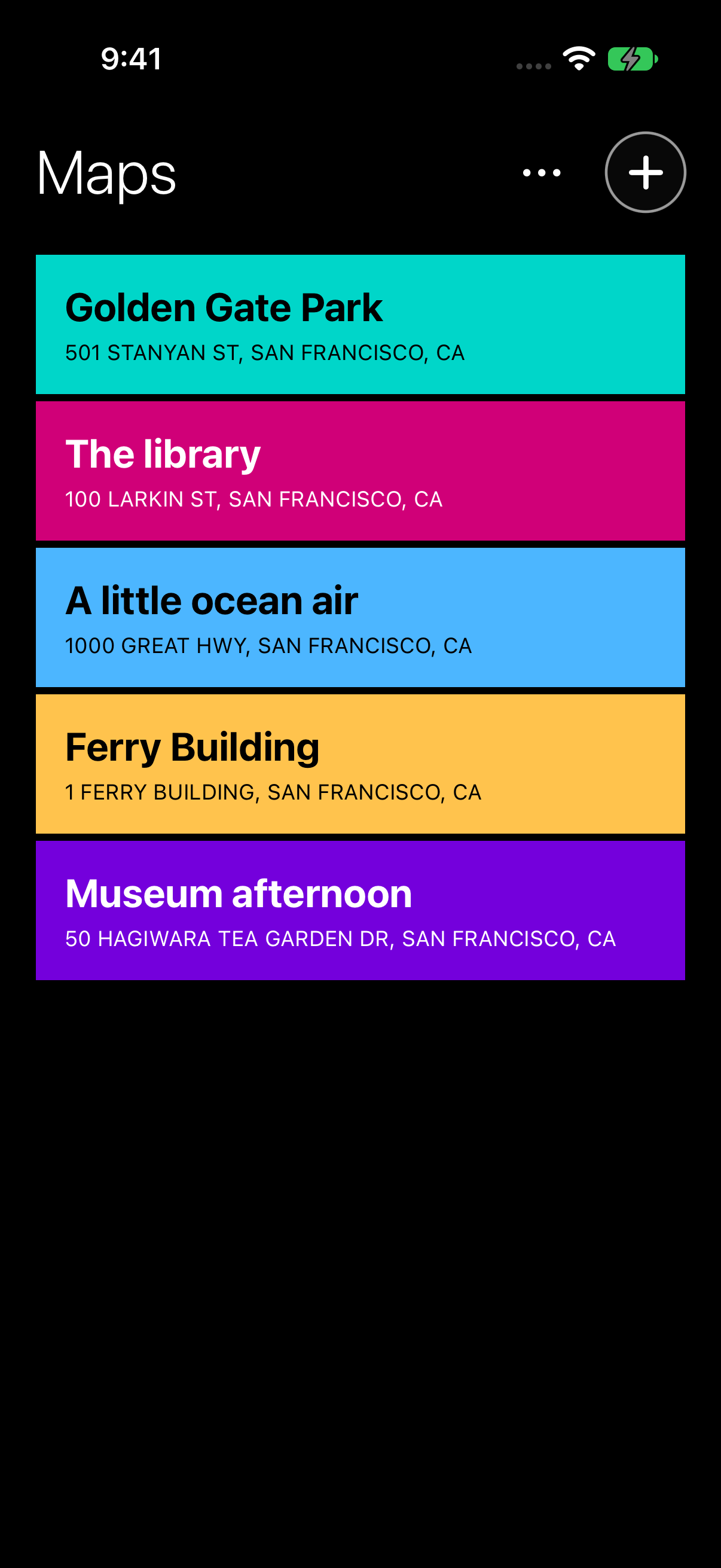
Your favorite places, ready on your iPhone and on the web. Save addresses as colorful tiles and open directions in Apple Maps with a tap.
Designed for iPhone. Also on the web.
THE IDEA IS SIMPLE
Less searching.
More getting there.
The park, the library, the place you keep meaning to revisit. Maps gives your regular destinations a simple, colorful home on your iPhone. Save an address, add a nickname, and find it at a glance. The web app brings the same tile collection to your computer or another phone.
A LITTLE COLOR. A FAMILIAR PLACE.
Make each place
feel like yours.
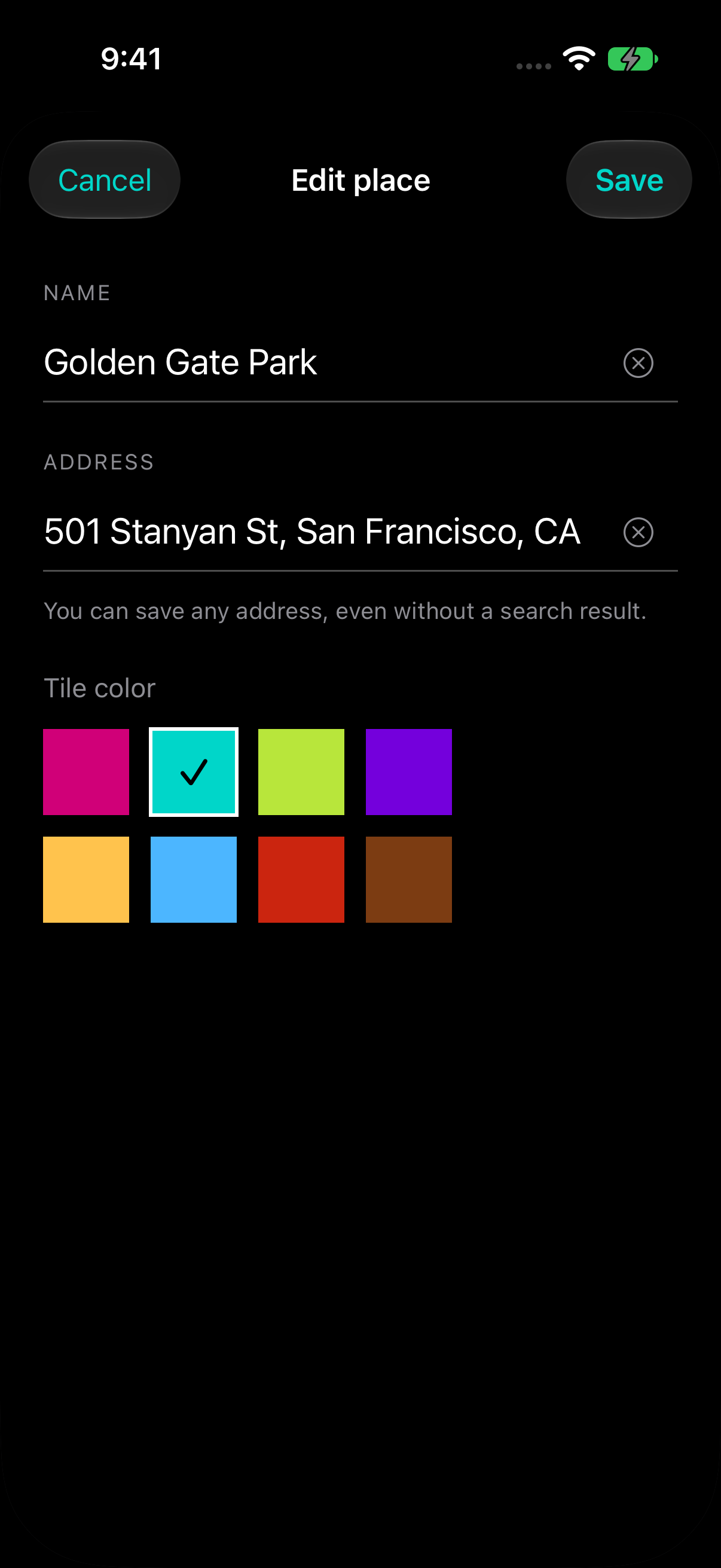
Search for an address or enter one yourself. Give it a nickname, choose a color, and keep it ready for next time. Swipe right to edit or left to delete. On a computer, drag a tile sideways to reveal the same actions.
A LITTLE MORE TO KNOW
Good questions.
Can I add a place from Apple Maps?
Yes. On iPhone, open a place in Apple Maps, choose Share, then select Maps. The address is added to your collection automatically. If Maps is not visible among the sharing targets, look under More.
Is Maps a navigation app?
Maps keeps your destinations ready on iPhone and on the web. Tap a tile to open directions in Apple Maps.
Where are my saved places stored?
In the iPhone app, addresses are saved in Maps on your device and are included in your device backup when backup is enabled for Maps. The web app keeps its collection in this browser on this device. Export a backup before clearing website data; you can import it into either version.
Can I add an address without autocomplete?
Yes. Choose Enter an address manually, give it a name and color, and save it. Directions can use the address directly.
How do I change or remove a place?
Swipe right on a tile to edit, or left to delete. Deletion offers Undo. On a computer, drag a tile sideways, or use the Left and Right Arrow keys to reveal an action. Hold and drag to reorder on a phone, or use Alt with Up and Down Arrow on a computer.
Can I use it here on this page?
Yes. Select Open Maps to open the app in a dialog on this page, or use the full-screen link. On a phone, you can also add the web app to your home screen.
Can I keep a backup of my places?
Yes. Open the three-dot menu and choose Export. Keep the JSON file in Files or iCloud Drive. Import restores missing entries while keeping your current collection and skipping duplicates. Native iPhone backups work here too.
Can I move places between iPhone and web?
Yes. Export a backup from the three-dot menu, then import it into the other version. Your collections remain separate; importing adds missing places and skips duplicates.